

What is Proration?
Proration is the adjustment of charges based on the unused portion of the current billing period when a subscription is upgraded or downgraded.Types of Proration
For bothprorate and invoice proration types, the subscription plan changes immediately upon successful payment, whether the change is an upgrade or a downgrade. The only difference between the two proration types is when the price difference is charged or credited.
Invoice Immediately (invoice)
The prorated price difference is charged or credited immediately when the subscription is upgraded or downgraded.
Next Invoice (prorate)
The prorated price difference is charged or credited on the next invoice on upgrading or downgrading a subscription.
Apply on Next Period (next_period)
The subscription change is not applied immediately. Instead, it is scheduled as a pending update and applied at the beginning of the next billing period. No proration charges or credits are issued — the new plan simply takes effect on renewal.
When a next_period update is pending, the subscription object includes a pending_update field with details about the scheduled change. If pending_update is null, there is no scheduled change.
A new update always overrides any previous pending update that has not yet
been applied. For example, if a
next_period update was previously scheduled
and a new update is then made with invoice or prorate proration, the
pending update is discarded and the new update is applied immediately instead.How to change the default proration setting using dashboard
Go to Organization Settings
In the Aureon dashboard sidebar, click on Settings. You can also go
directly to: 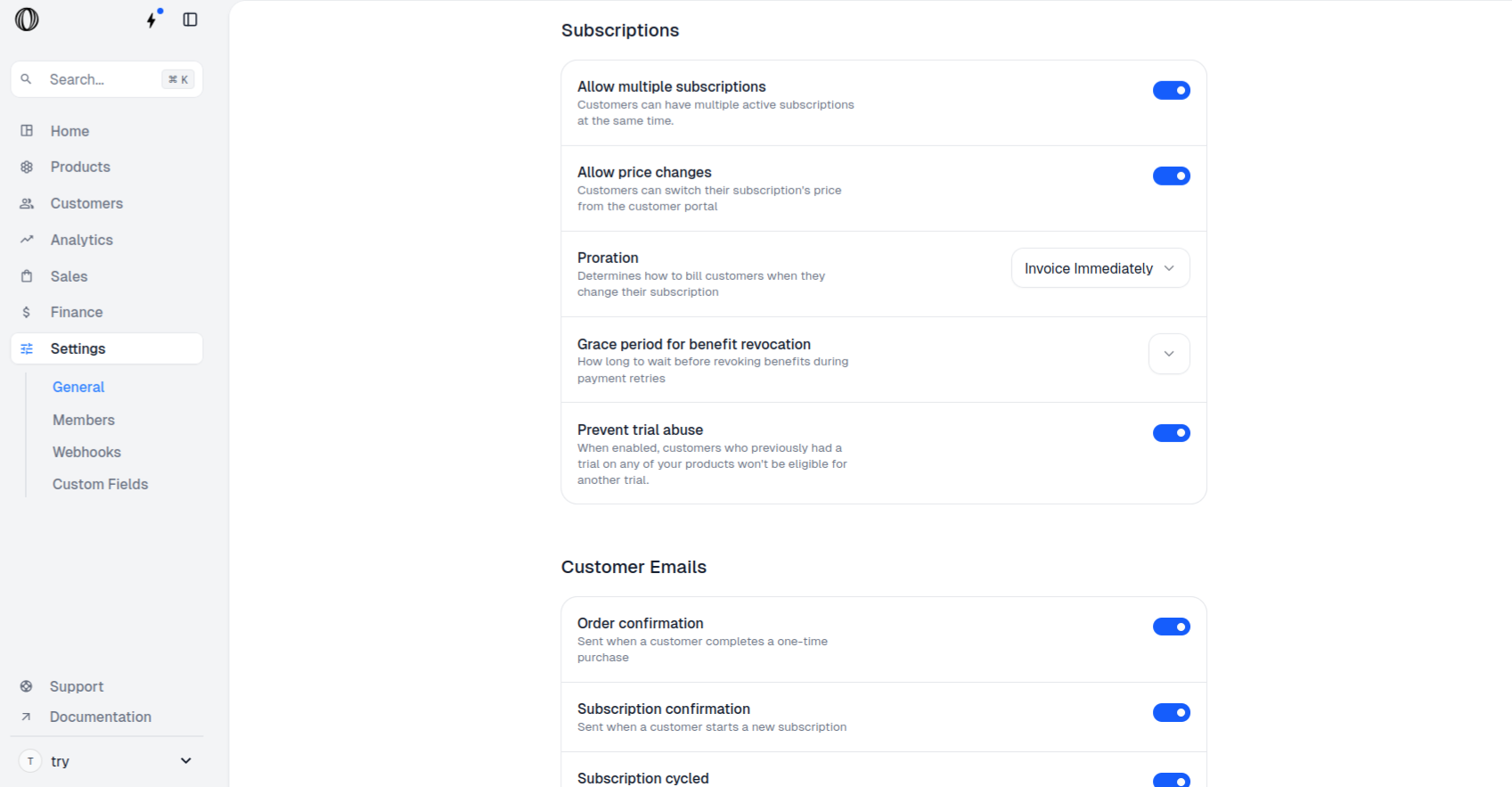
https://payaureon.com/dashboard/${org_slug}/settings Scroll
down to Subscriptions section.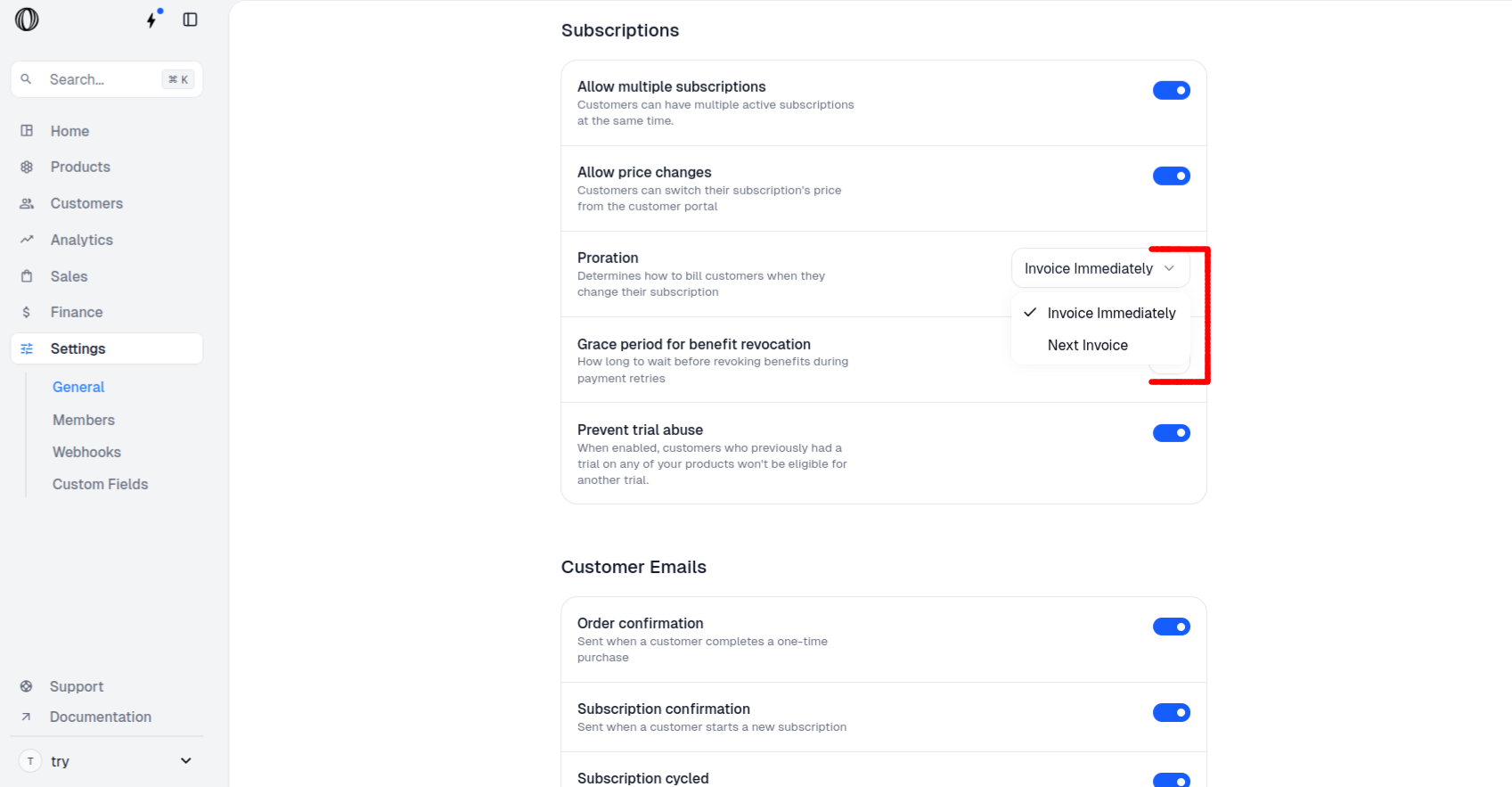
How to change the default proration setting using the OAT API
You can change the default proration behavior using the Update Organization API.How to prorate when updating subscription via API
Create an organization Token
Create a new organization token by following our Organization Access Tokens guide.
Save your Access Token
After creating your access token, you will be able to view it. Please copy and save your access token.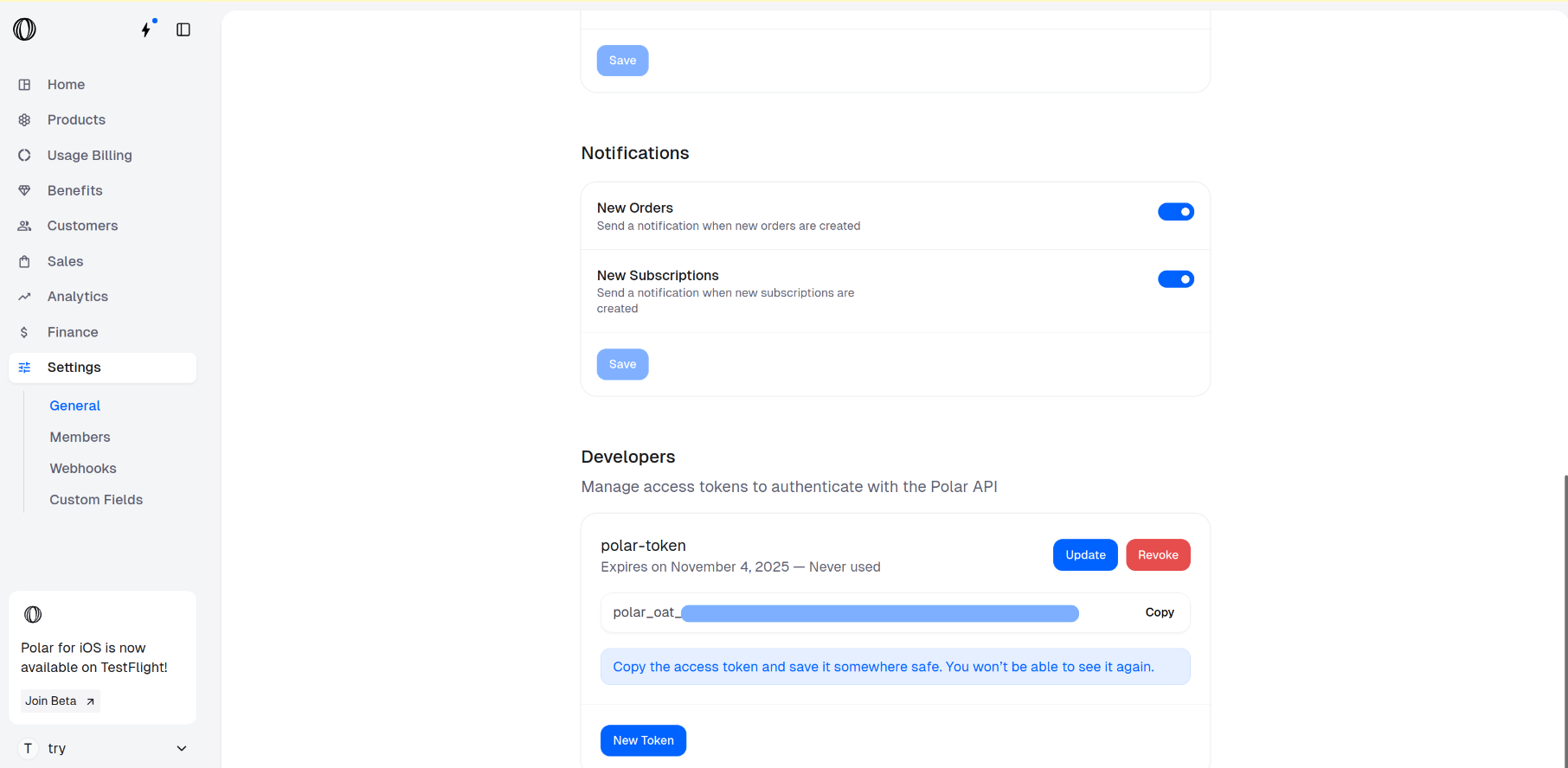
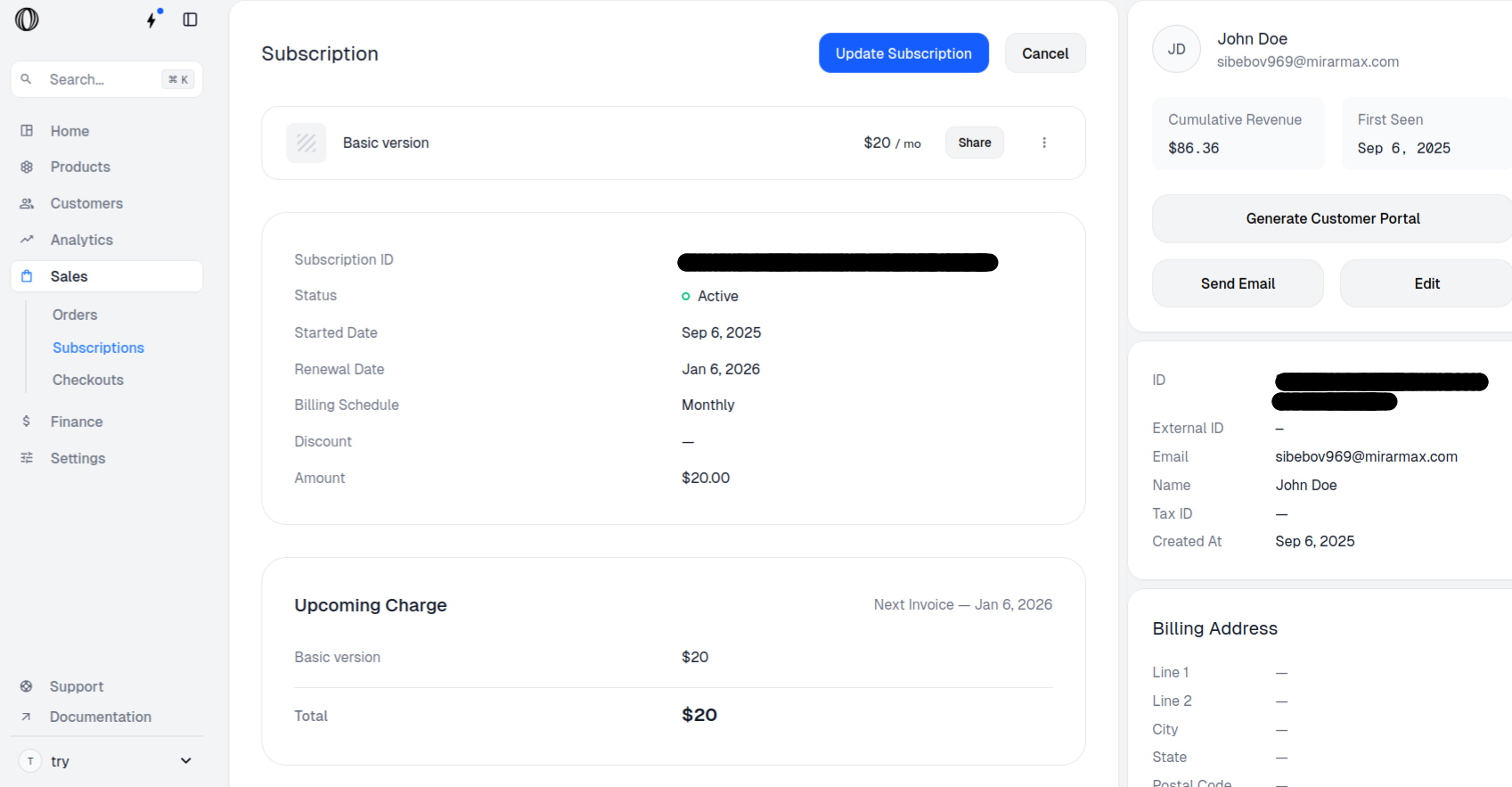
Copy the Subscription ID
- In the Aureon dashboard sidebar, navigate to Sales > Subscriptions for your organization.
You can also go directly to:
https://payaureon.com/dashboard/${org_slug}/sales/subscriptions
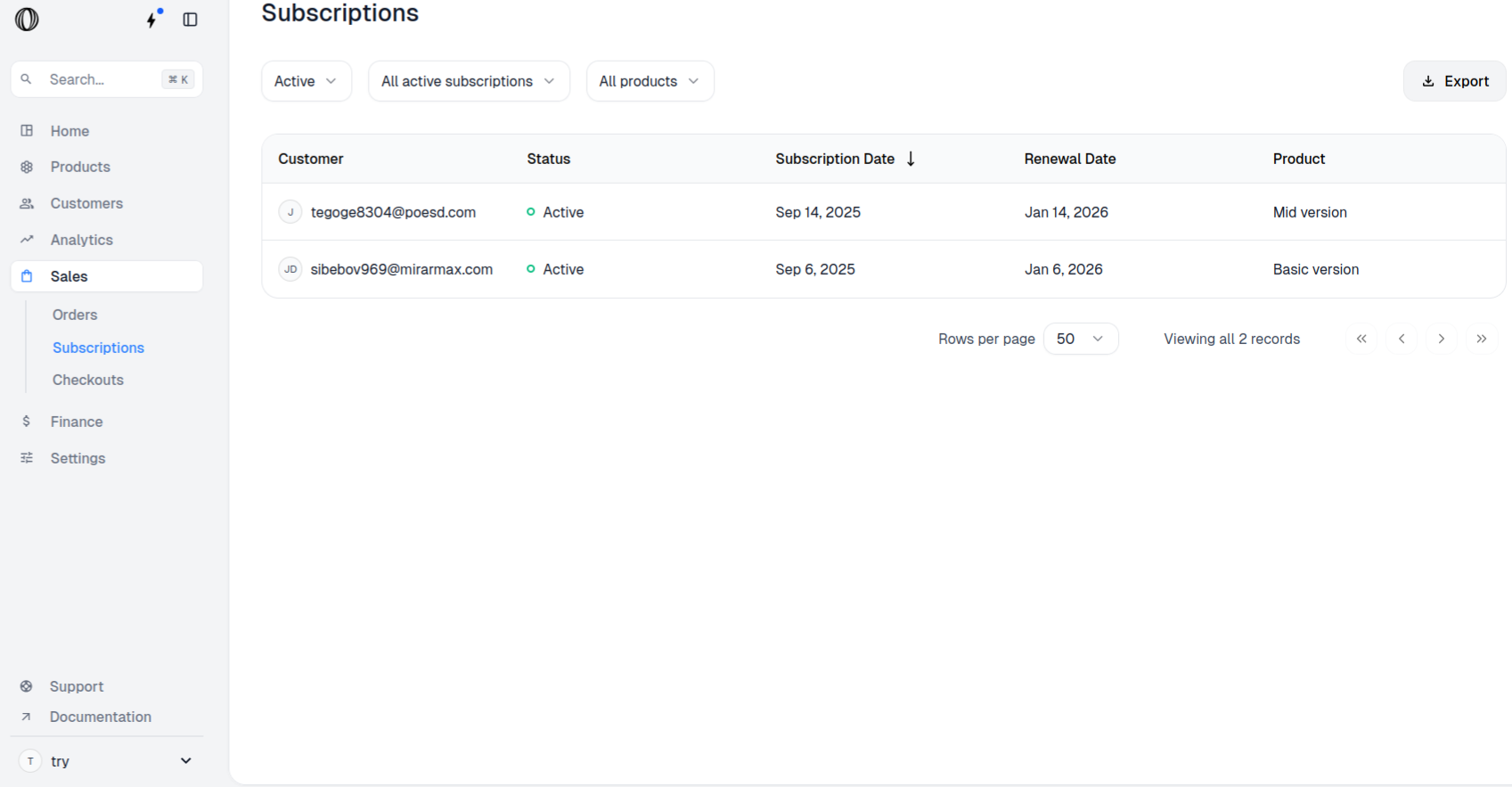
- Click on the Subscription you want to upgrade/downgrade and copy its Subscription ID.
Copy the Product ID
- In the Aureon dashboard sidebar, navigate to Products > Catalogue for your organization.
You can also go directly to:
https://payaureon.com/dashboard/${org_slug}/products
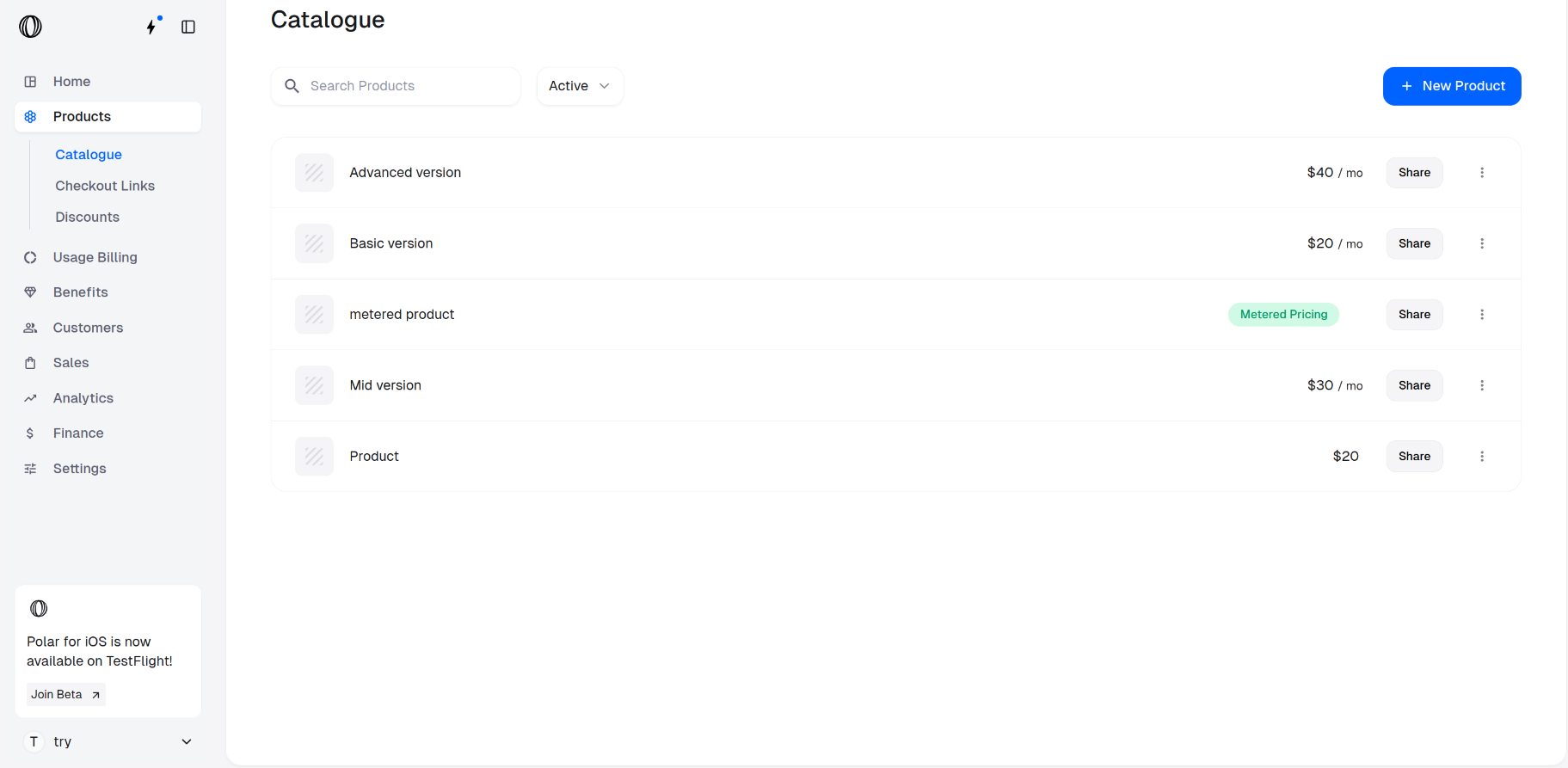
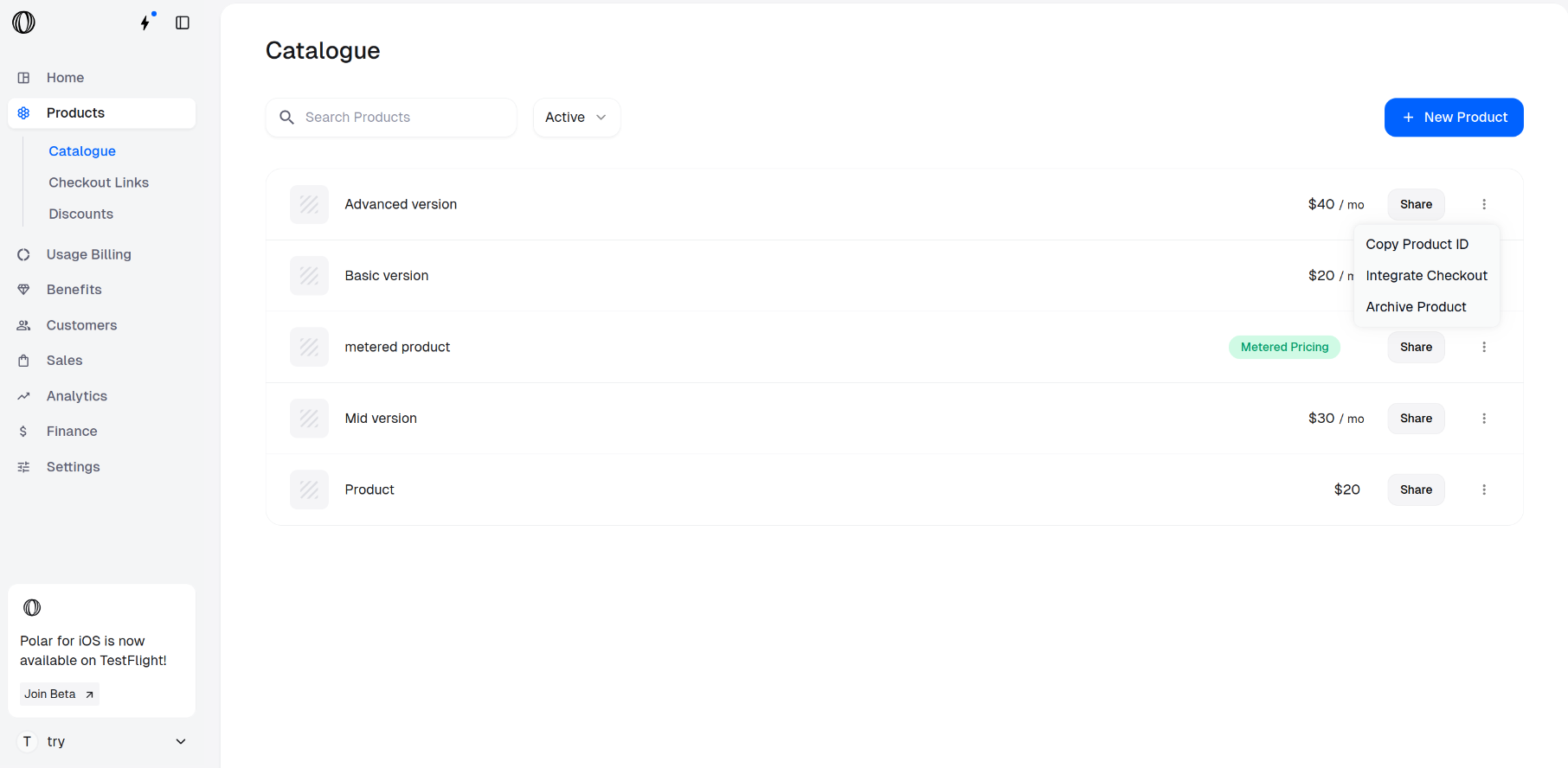
- Retrieve the Product ID for the item you wish to upgrade the subscription to by clicking on the ⋮ (More options) menu next to chosen products and selecting Copy Product ID.
Call the Update Subscription API
Call the Update Subscription API as follows.Make sure to replace:
- subscription_id with the ID of the subscription you want to update
- product_id with the new product ID
-
type_of_proration with the desired proration type:
invoice: to charge/credit the prorated price difference immediatelyprorate: to charge/credit the prorated price difference on next invoicenext_period: to schedule the change for the beginning of the next billing period (no proration)
Some examples for proration amount calculation
You can create a subscription with two plan options, one for $5 and other for $20 by following Create Product Variants.Case 1: Upgrading the subscription
You can upgrade a subscription by following the steps outlined in Subscription Upgrades, which explains the process from both the merchant’s and the customer’s perspectives. Example 1: Proration type =invoice
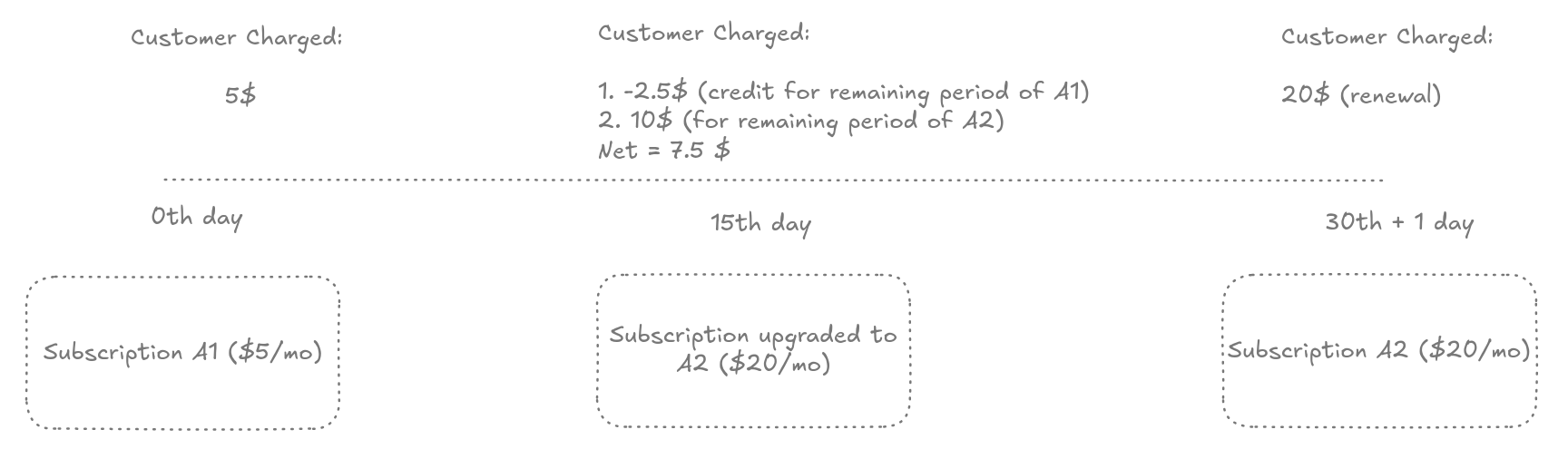 Assuming that the month when the subscription was purchased has 30 days. In case
of 31 days, instead of 30th + 1 day, it would be 31st + 1 day = 32nd day.
Example 2: Proration type =
Assuming that the month when the subscription was purchased has 30 days. In case
of 31 days, instead of 30th + 1 day, it would be 31st + 1 day = 32nd day.
Example 2: Proration type = prorate
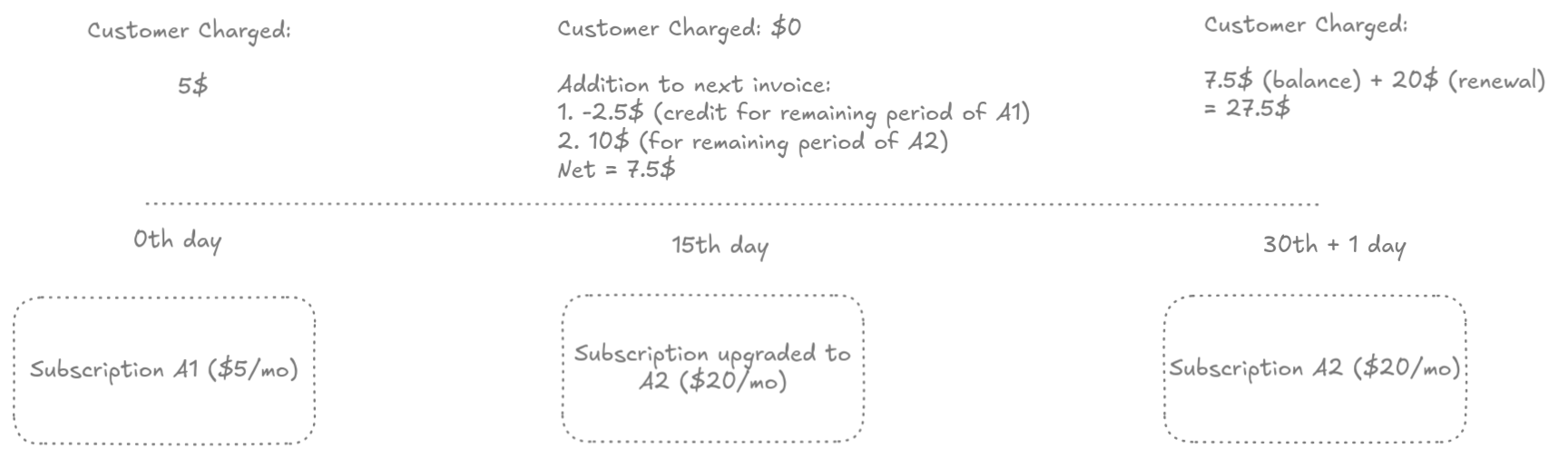 Assuming that the month when the subscription was purchased has 30 days. In case
of 31 days, instead of 30th + 1 day, it would be 31st + 1 day = 32nd day.
Assuming that the month when the subscription was purchased has 30 days. In case
of 31 days, instead of 30th + 1 day, it would be 31st + 1 day = 32nd day.
If the billing interval changes, i.e. daily to monthly or monthly to yearly or
vice versa, the proration is always applied as invoice (even if set to
prorate).
Case 2: Downgrading the subscription
You can downgrade a subscription by following the steps outlined in Subscription Downgrades, which explains the process from both the merchant’s and the customer’s perspectives. Example 1: Proration type =invoice
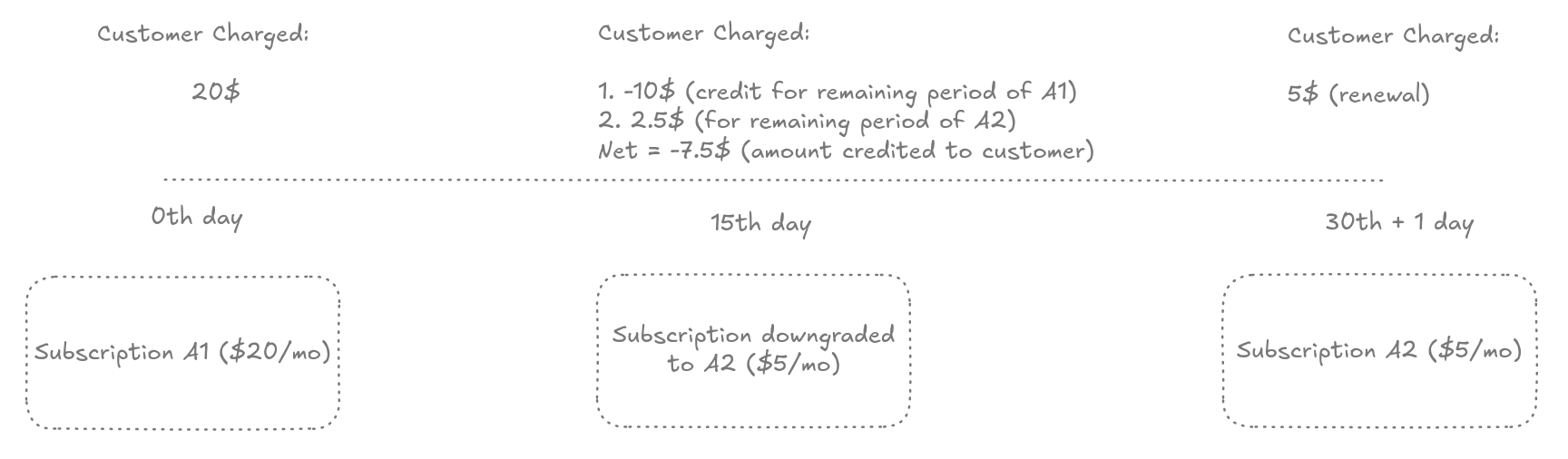 Assuming that the month when the subscription was purchased has 30 days. In case
of 31 days, instead of 30th + 1 day, it would be 31st + 1 day = 32nd day.
Example 2: Proration type =
Assuming that the month when the subscription was purchased has 30 days. In case
of 31 days, instead of 30th + 1 day, it would be 31st + 1 day = 32nd day.
Example 2: Proration type = prorate
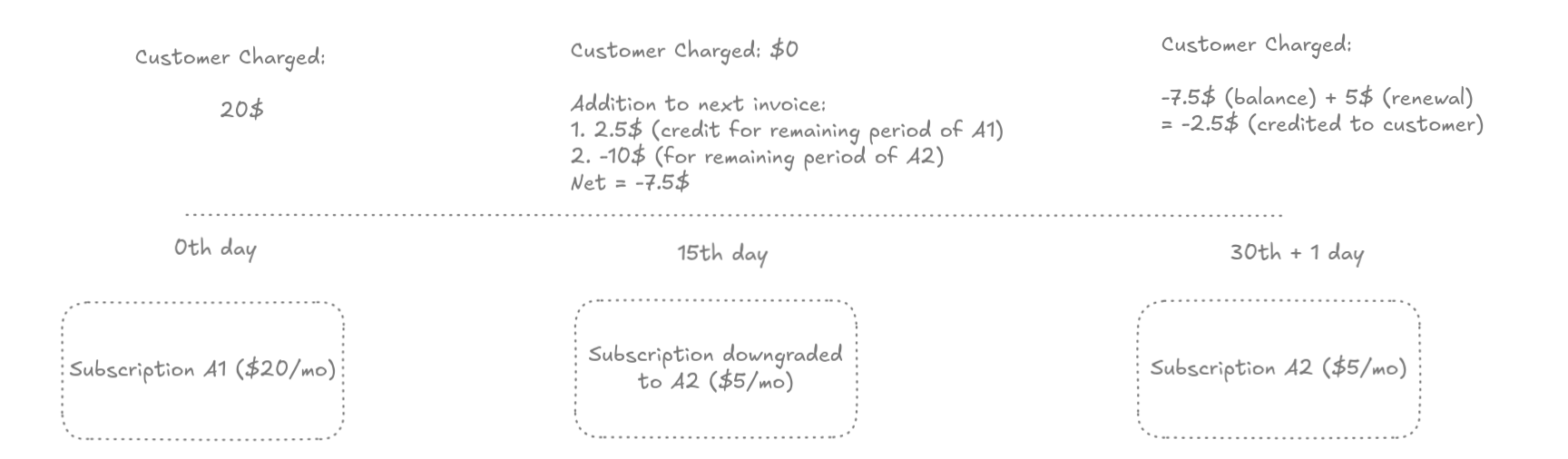 Assuming that the month when the subscription was purchased has 30 days. In case
of 31 days, instead of 30th + 1 day, it would be 31st + 1 day = 32nd day.
Assuming that the month when the subscription was purchased has 30 days. In case
of 31 days, instead of 30th + 1 day, it would be 31st + 1 day = 32nd day.
If the billing interval changes, i.e. daily to monthly or monthly to yearly or
vice versa, the proration is always applied as invoice (even if set to
prorate).